


FAQ


1. Screencasts
How to setup your front page:
How to create review types and write reviews part 1
How to create review types and write reviews part 2
How to setup non-review posts within your review types
More to come…
2. How do I import the demo content?
The demo xml file that comes with the theme contains one review type completely setup called Movie. Before you import this file, you need to create this review type in your Review Options page. Then you need to specify all of the necessary options, which are detailed in this screenshot of the demo review options (you only need to setup Movie).

After you setup the review type, go to Tools >> Import and choose WordPress. Upload the demo xml file that came in your Made-Theme folder and click Upload File and Import. Do not make any selections or assignments for the authors.
After the import finishes, go to Appearance >> Menus and in the Theme Locations panel select the menu for each of the menu locations (for some reason the import process creates the menus correctly but does not assign them to these three spots).
Then, you will need to go to Appearance >> Widgets and setup your widgets since the import file does not contain widget information.
Finally, you will need to go to Appearance >> Theme Options and setup your theme options to match the demo. All of the demo theme options are detailed in this screenshot.
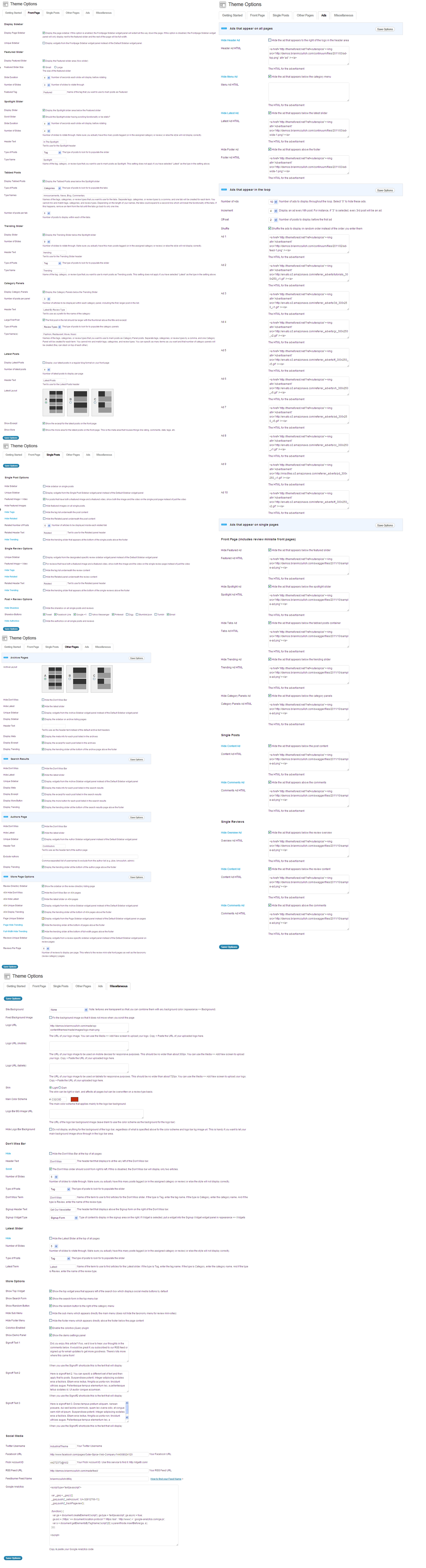
We also provide a screenshot of the full review options from the main Made demo which is located here: Made Demo Review Options. Some browsers have trouble displaying an image of this size in the colorbox. If you have this issue, right-click on the link and open the image in a new window (or save it to your computer) to view it.

3. Can I import the demo MySql database directly via a .sql file?
- Backup your database!
- Open your WordPress database using phpMyAdmin on your web server
- Drop all of your tables: Structure >> Check All >> With Selected: Drop
- Click Import tab at the top
- Click Choose File and select the .sql file in your Made-Theme folder
- Click Go
- Open your wp_options table
- Change the value in the siteurl and home records to your domain (currently they are pointing to http://www.brianmcculloh.com/wp-made-demo)
After you make these changes, you can access your WordPress admin panel using the following credentials:
Username: brianmcculloh
Password: MadeDem0
Once logged in you should see one review type called Movie and 5 sample movie reviews, as well as all of the Review Options for that review type and all the Theme Options from the demo.
4. How do I upgrade from Swagger to Made?
- Install Made and activate it.
- Go to Appearance >> Menus and re-assign your menus in the Theme Locations panel. The layout of the menus is not exactly the same in Made as in Swagger, so you might have to do a little tweaking to get them where you want them.
- Install and run the free plugin called AJAX Thumbnail Rebuild. It is only necessary to run this once right after you first activate the theme.
- Go to Appearance >> Theme Options >> Front Page and select a size for your Featured Slider Size and specify a layout for your Latest Posts >> Latest Layout and click Save Options.
- Go to Appearance >> Review Options and click Save Options.
- Go to Appearance >> Widgets and open each Extended: Latest Reviews, Extended: Latest Review Tabs, and Extended: Post Tabs widget in all of your sidebars and click Save on each one (this fixes thumbnail sizes).
- Go to Appearance >> Miscellaneous and specify a color for your Main Color Scheme.
- Your review types, rating info, posts, pages, categories, tags, taxonomies, etc. will all be visible without any further modifications. Keep in mind Made is not the exact same theme as Swagger so you will definitely need to spend some time getting your site settings how you want them.
5. How do I use the mini-sites for non-review types?
6. I created my review types but they’re not showing up in my admin panel.
7. On a taxonomy listing page, the page completely stops loading after the category menu.
8. There are a bunch of widgets at the bottom of my front page that are supposed to be in the sidebar.
9. My Featured slider layout does not look correct, and images are displaying incorrectly.
10. My featured slider is completely broken and nothing is displaying in it at all.
1. You must make sure the value in Appearance >> Theme Options >> Front Page >> Featured Slider >> Featured Tag matches the name of the tag you want to use. To find the slug of the tag you want to use, go to Posts >> Tags and locate the tag in the list and look at the slug to the right of the tag name. Here is a screenshot to help you:
2. You must tag your articles with the tag you want to use. So, if you have chosen to use “featured” as your tag, you must tag your posts “featured”. Here is a screenshot to help you:

3. You must assign featured images to the posts that you have tagged “featured”. Here is a screenshot to help you.

If after doing these steps your featured slider still does not display anything at all, it is due to one of the following two reasons:
1) You have a plugin conflict which is causing a javascript error. Test to see if this is the case by temporarily disabling all of your plugins and see if the featured slider begins working.
…or…
2) Another slider on the page is broken, which will also cause the Featured Slider to not work. Make sure your Latest Slider, Spotlight Slider, Trending Slider, Don’t Miss slider, and Category Panels are all setup correctly on your home page (see Theme Options >> Front Page and Miscellaneous tabs to setup these sliders).
If, after making sure you try all of these steps, you are still unable to get the featured slider to work, please post a question on our support forum.
11. My ratings are not showing up on my single review page and the page is broken.
12. I see an error when viewing my site that mentions the functions/oswc-post-types.php file
13. How can I change the sizes of my post featured thumbnail images?
//add thumbnail support

if ( function_exists( 'add_theme_support' ) ) { // Added in 2.9

add_theme_support( 'post-thumbnails' );

set_post_thumbnail_size( 160, 160, true ); // default post thumbnails

add_image_size( 'latest', 163, 109, true );

add_image_size( 'featured-full', 1000, 550, true );

add_image_size( 'featured-small', 650, 360, true );

add_image_size( 'footer-thumbnail', 40, 40, true );

add_image_size( 'spotlight', 300, 170, true );

add_image_size( 'spotlight-small', 230, 135, true );

add_image_size( 'loop-large', 630, 350, true );

add_image_size( 'loop-large-full', 960, 450, true );

add_image_size( 'panel-small', 190, 108, true );

add_image_size( 'trending', 105, 70, true );

add_image_size( 'widget-thumbnail', 70, 70, true );

add_image_size( 'single', 625 );

add_image_size( 'single-medium', 300 );

add_image_size( 'single-small', 180 );

add_image_size( 'single-full', 960 );

add_image_size( 'single-review', 350 );

add_image_size( 'related', 110, 70, true );

}
Find the line that corresponds to the image size you want to change. For instance, if you want to change the size of the images that appear in the spotlight slider, you would edit line 216. The two numbers on that line represent the width followed by the height in pixels. So, if you want to change the spotlight images from 170px height to 200px in height, you would change line 216 to this:
add_image_size( 'spotlight', 300, 200, true );
IMPORTANT – after changing any of these values, you must install and run the AJAX Thumbnail Rebuild plugin so your existing images can be resized to fit the new dimensions. It will not be necessary to run the plugin again after the first time (unless you change a value again).
14. When I post a new review and try to view it I get a 404 error.
15. When I enable the Disqus plugin my featured slider stops working.
16. I receive the following message on my review mini-site front page: ‘The specified review type does not match a review type in the system.’
17. How do I translate the PO file that came with this theme and apply it to my theme?
18. The Don’t Miss slider stops rotating after it has shown all of the posts and does not loop.
19. The Latest Slider only shows one post, or it is broken and not working properly.
20. There is extra white space below my spotlight slider.
21. I can’t put more than one slider or tabs shortcode on a page/post at once.
22. My tabbed widgets are broken in the sidebar or footer and are displaying all the items at once instead of in tabbed format.
23. When viewing a taxonomy listing or single review page, the review menu item in the main menu is not highlighted with the appropriate color.
24. How do I keep my current permalinks when switching from my previous theme to Made?
25. When viewing my site on a mobile phone, the top and main menus are displaying the non-responsive version in addition to the responsive select box version.
26. How do I use Jetpack Gallery plugin or Next-gen Gallery plugin with this theme?
jQuery(".page-content a[href$='.jpg'],a[href$='.png'],a[href$='.gif']").colorbox();
jQuery('.page-content .gallery a').colorbox({  rel:'gallery' });
27. Help! I made a change in my Review Options and my site broke (all my taxonomies disappeared from my admin review menus)!
28. Page 2 of review type mini-sites give 404 errors.
29. How do the user ratings (added in Made version 1.5) work, exactly?
- Users can rate both by posting a comment or in the rating overview panel without having to leave a comment
- Ratings are stored both in the comment meta data and as a custom field on the review itself called “user_rating” (don’t delete the custom field or you will lose the total number of ratings!)
- All or nothing right now – can’t hide certain parts of user ratings
- Users can only rate once (tracked via IP Address)
- You must go to your Review Options and click Save before you will see user ratings on your site (the setting is marked as “enabled” by default but it’s not actually active until you click Save)
- You can enable user ratings on a per review type basis, but not on a per review basis
30. On the front page of my review mini-site(s) I get a 404 error when I attempt to move to any pages past page 1.
31. How to I get Yoast SEO to work with Made?
32. None of my custom permalinks structures are working.
33. I get an error when I try adding new taxonomies.
34. What’s the difference between regular WordPress categories and review type taxonomies?
This is just one example. There is no one right way to setup your site. You can do it a million different ways, whichever best suits your site and how you want to organize your content.